7月
05
macOSでBlackboxログファイルは普通にコピー出来ますが、そのあとでファイル名を変更をするためにはまずロックを外さなければなりません。これが何気に面倒です。そこでコピーしたあとで自動的にロックを外す仕組みを作りました。
[ 手順 ]
– 下にあるスクリプトをbblcopy.scptという名前でどこかに保管します。
– ドローンを接続してBetaflight Configurator/blackboxで「大容量ストレージモードを有効化」を行います。
– Finderからbblcopy.scptをダブルクリックするとスクリプトエディターが立ち上がります。
– スクリプト/実行
– コピー元であるドローンのログが表示されますのでコピーしたいものを選択します(複数可)。
– 次のダイアログでコピー先を選択。
以上でログファイルがコピーされロックも外れます。すぐにファィル名の変更が可能です。
[ メニューバーからスクリプトを起動する ]
まず、bblcopy.scptを所定の場所にコピーする。私は以下の手順をとりました。
mkdir ~/Library/Scripts
cp bblcopy.scpt ~/Library/Scripts
Finderから行う場合は、移動メニューを出してOptionを押すとメニューにライブラリが現れるのでそこで作業します。
そして、スクリプトエディタを立ち上げて設定を開き「メニューバーにスクリプトメニューを表示」にチェックを入れます。
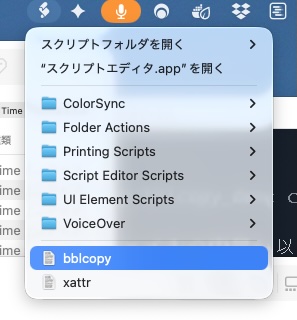
こんな感じで何時でもサクッと起動できるようになります。
[ 補足 ]
コピー先を覚えておくために~/Library/Application Support/bblcopy/にファイルを作っています。
# bblcopy.scpt — Blackbox log コピー用 AppleScript

property lastDestPath : ""

on run
    set prefsFolder to (POSIX path of (path to home folder)) & "Library/Application Support/bblcopy/"
    set prefsFile to prefsFolder & "last_dest.txt"
    do shell script "mkdir -p " & quoted form of prefsFolder

    try
        set savedPath to (do shell script "cat " & quoted form of prefsFile)
        if savedPath ≠ "" and (do shell script "test -d " & quoted form of savedPath & " && echo yes || echo no") = "yes" then
            set lastDestPath to savedPath
        end if
    end try

    if lastDestPath = "" then
        set lastDestPath to POSIX path of (path to desktop folder)
    end if

    set volumeMounted to (do shell script "test -d /Volumes/BETAFLT && echo yes || echo no") = "yes"
    if not volumeMounted then
        display dialog "/Volumes/BETAFLT がマウントされていません。Betaflight Configuratorから大容量ストレージモードを有効にして下さい。" ¬
            with title "ボリュームが見つかりません" ¬
            buttons {"OK"} default button "OK" ¬
            with icon caution
        return
    end if

    set srcFiles to choose file ¬
        with prompt "コピー元ファイルを選択(複数可)" ¬
        default location (POSIX file "/Volumes/BETAFLT/") ¬
        multiple selections allowed true

    if srcFiles = {} then return

    set destFolder to choose folder ¬
        with prompt "コピー先フォルダーを選択" ¬
        default location (POSIX file lastDestPath)

    set lastDestPath to POSIX path of destFolder
    do shell script "echo " & quoted form of lastDestPath & " > " & quoted form of prefsFile

    set destPOSIX to POSIX path of destFolder
    set copiedCount to 0
    set skippedCount to 0
    set overwriteAll to false

    repeat with f in srcFiles
        set srcPOSIX to POSIX path of f
        set baseName to (do shell script "basename " & quoted form of srcPOSIX)
        set destPath to destPOSIX & baseName
        set fileExists to (do shell script "test -e " & quoted form of destPath & " && echo yes || echo no") = "yes"

        set doCopy to true
        if fileExists and not overwriteAll then
            display dialog (baseName & " は既にコピー先に存在します。上書きしますか?") ¬
                with title "同名ファイルの確認" ¬
                buttons {"スキップ", "すべて上書き", "上書き"} ¬
                default button "上書き"
            set theButton to button returned of result
            if theButton = "スキップ" then
                set doCopy to false
            else if theButton = "すべて上書き" then
                set overwriteAll to true
            end if
        end if

        if doCopy then
            do shell script "cp -f " & quoted form of srcPOSIX & " " & quoted form of destPath
            do shell script "chflags nouchg " & quoted form of destPath
            set copiedCount to copiedCount + 1
        else
            set skippedCount to skippedCount + 1
        end if
    end repeat

    set resultMessage to (copiedCount as text) & " 件のファイルをコピーしました"
    if skippedCount > 0 then
        set resultMessage to resultMessage & "(" & (skippedCount as text) & " 件スキップ)"
    end if

    display notification resultMessage ¬
        with title "Blackbox Log コピー完了" ¬
        subtitle destPOSIX

    display dialog (resultMessage & "。" & return & return & destPOSIX) ¬
        with title "コピー完了" ¬
        buttons {"OK"} default button "OK"
end run
no comment untill now